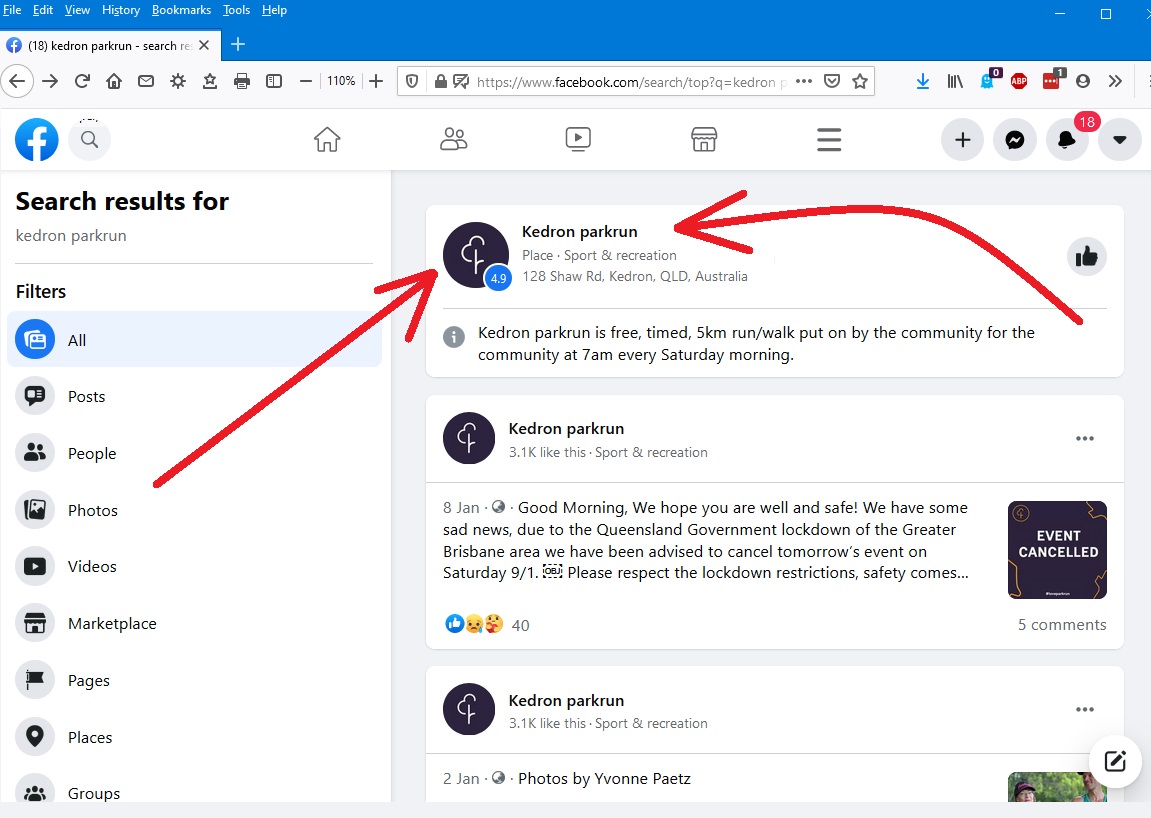
These instructions are for Facebook novices, so if you are already logged into Facebook, log out. Click on the little triangle at the top right and then click Log Out in the drop-down list.
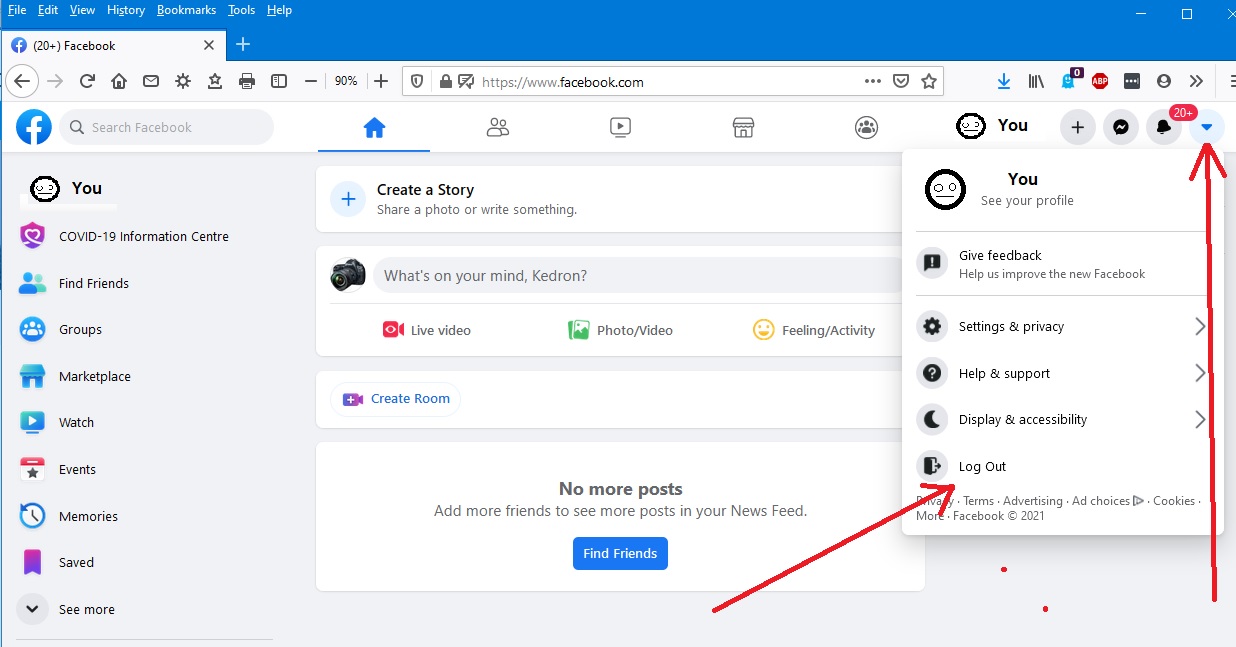
That should get you to this screen.
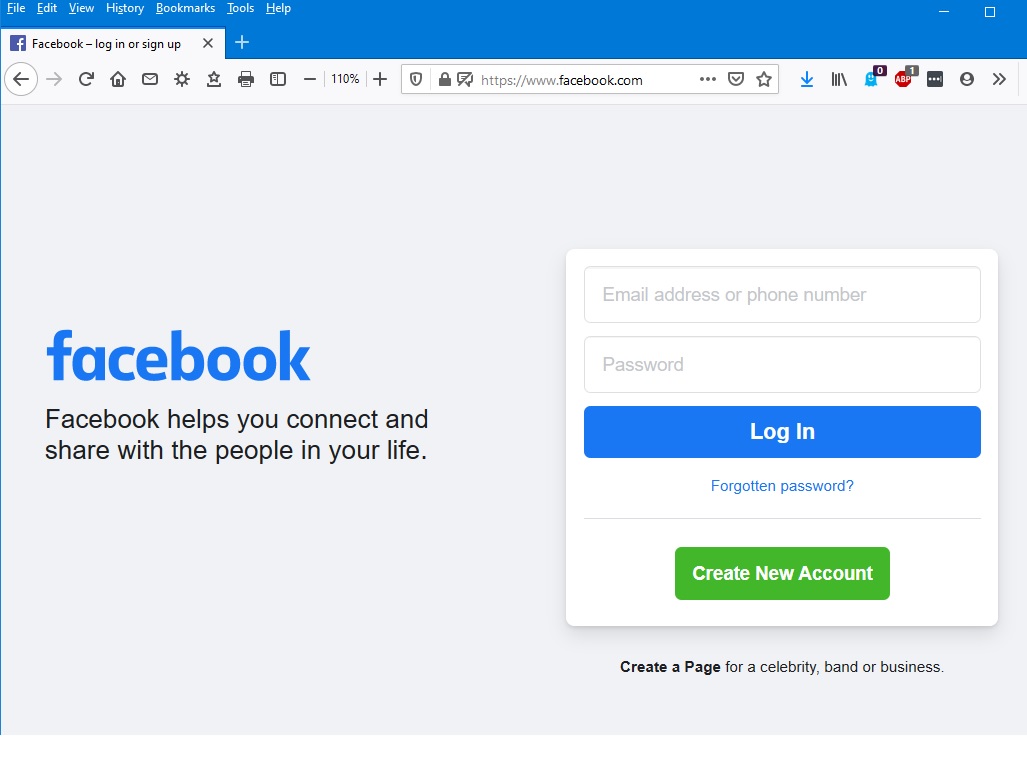
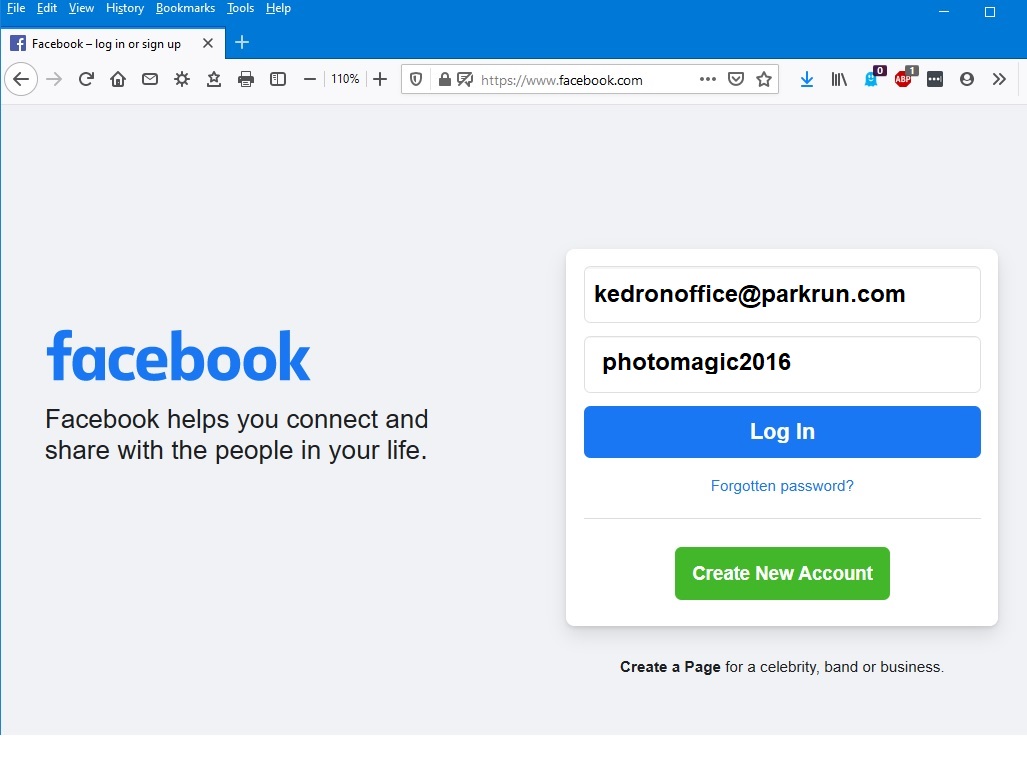
Email address: kedronoffice@parkrun.com
Password: photomagic2016
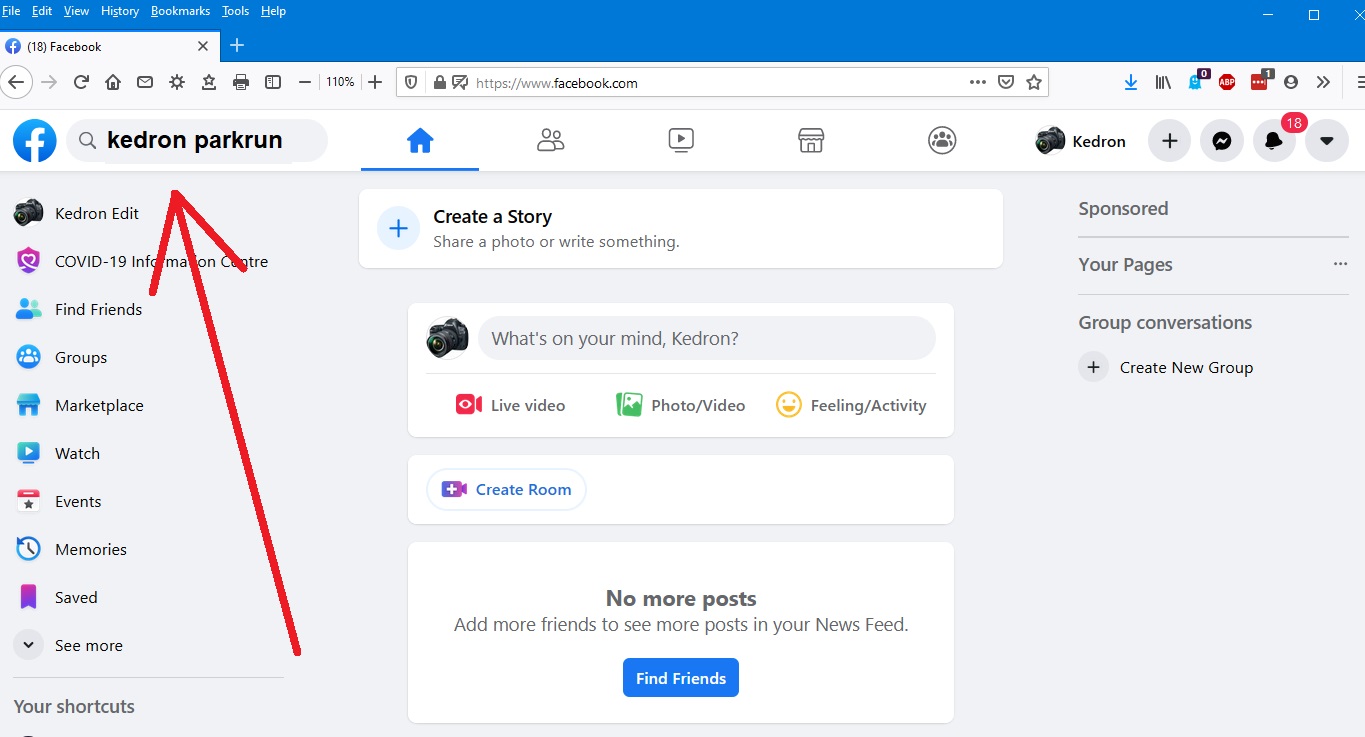
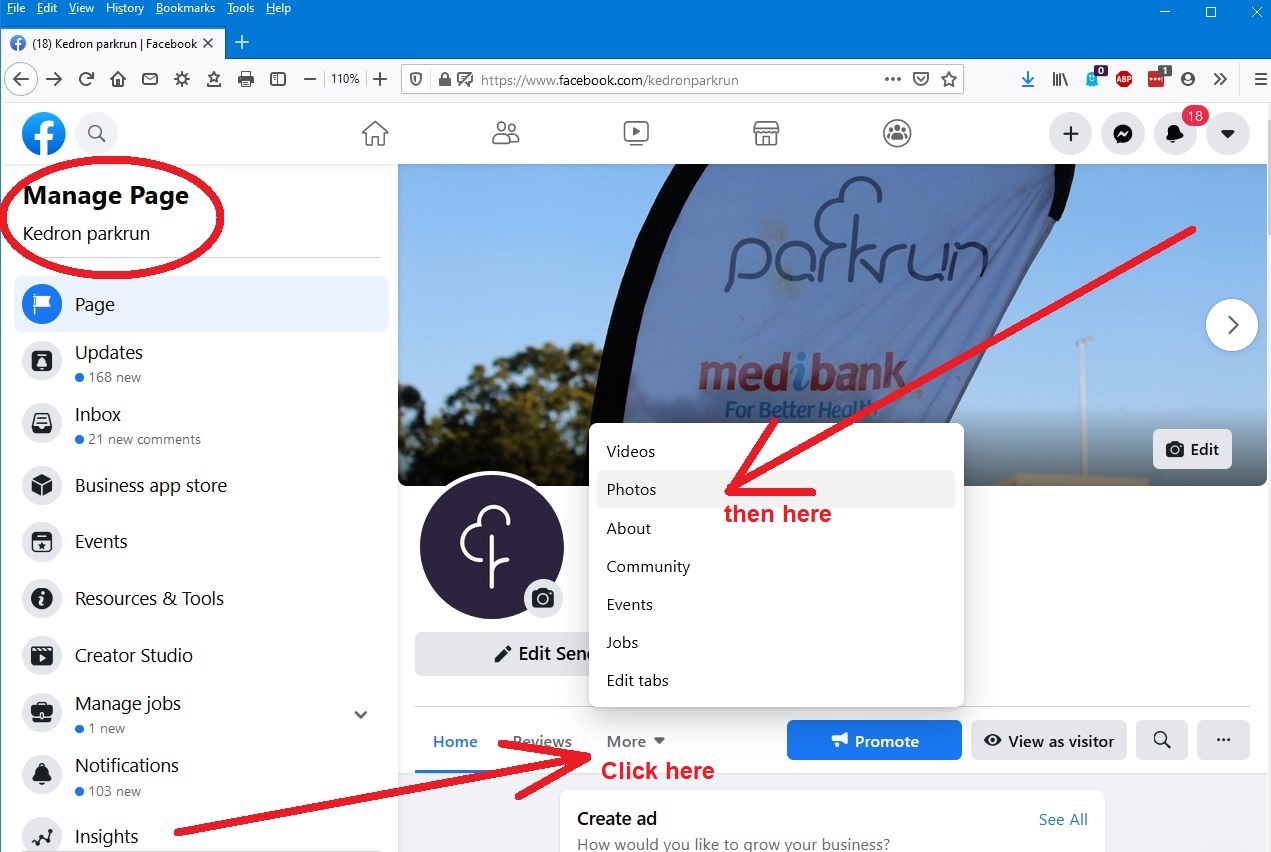
Click on More, and from the pop-up list, then click on Photos
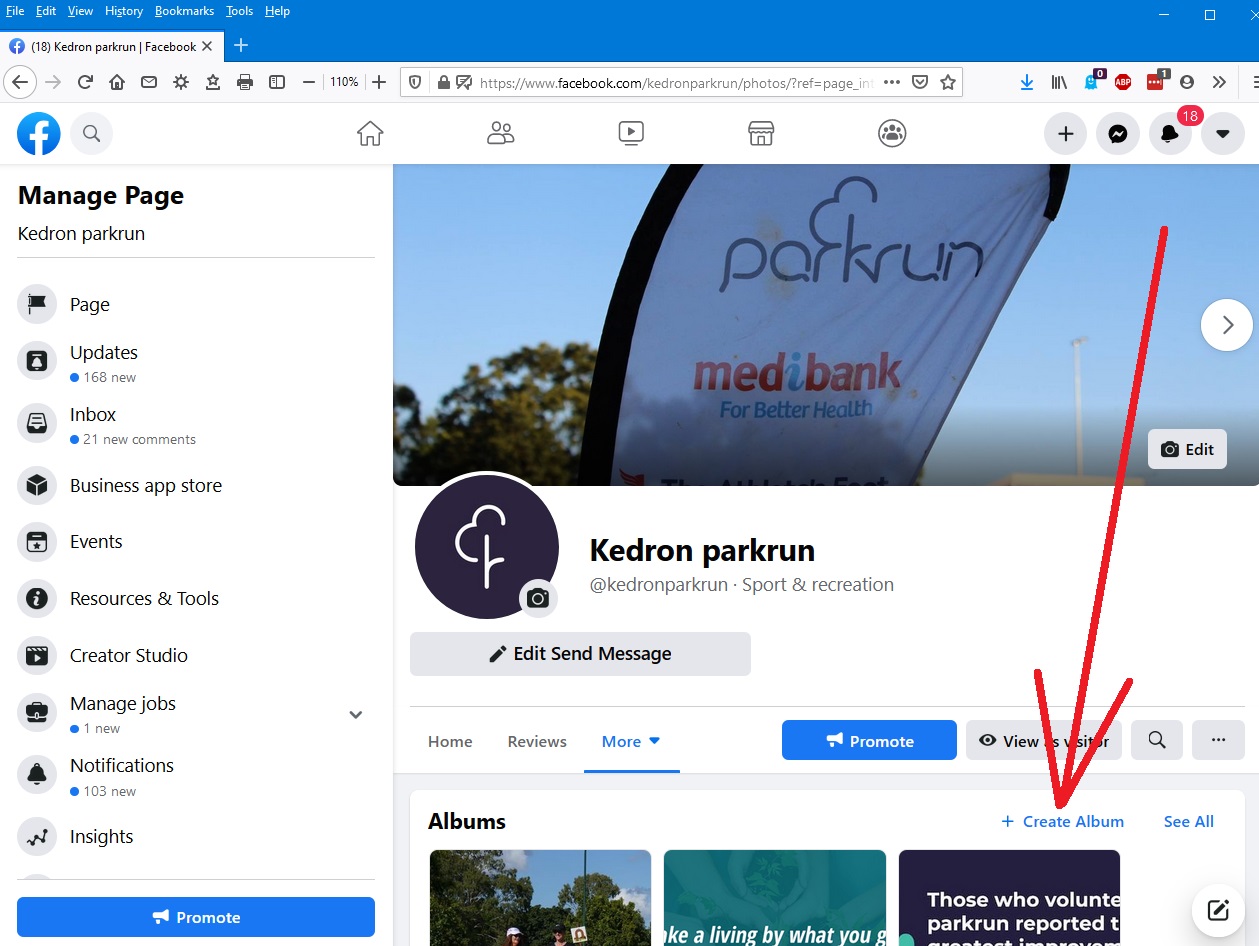
It should be Kedron Park Run, the date, and the event number if you know it.
Then, click on Upload Photos.
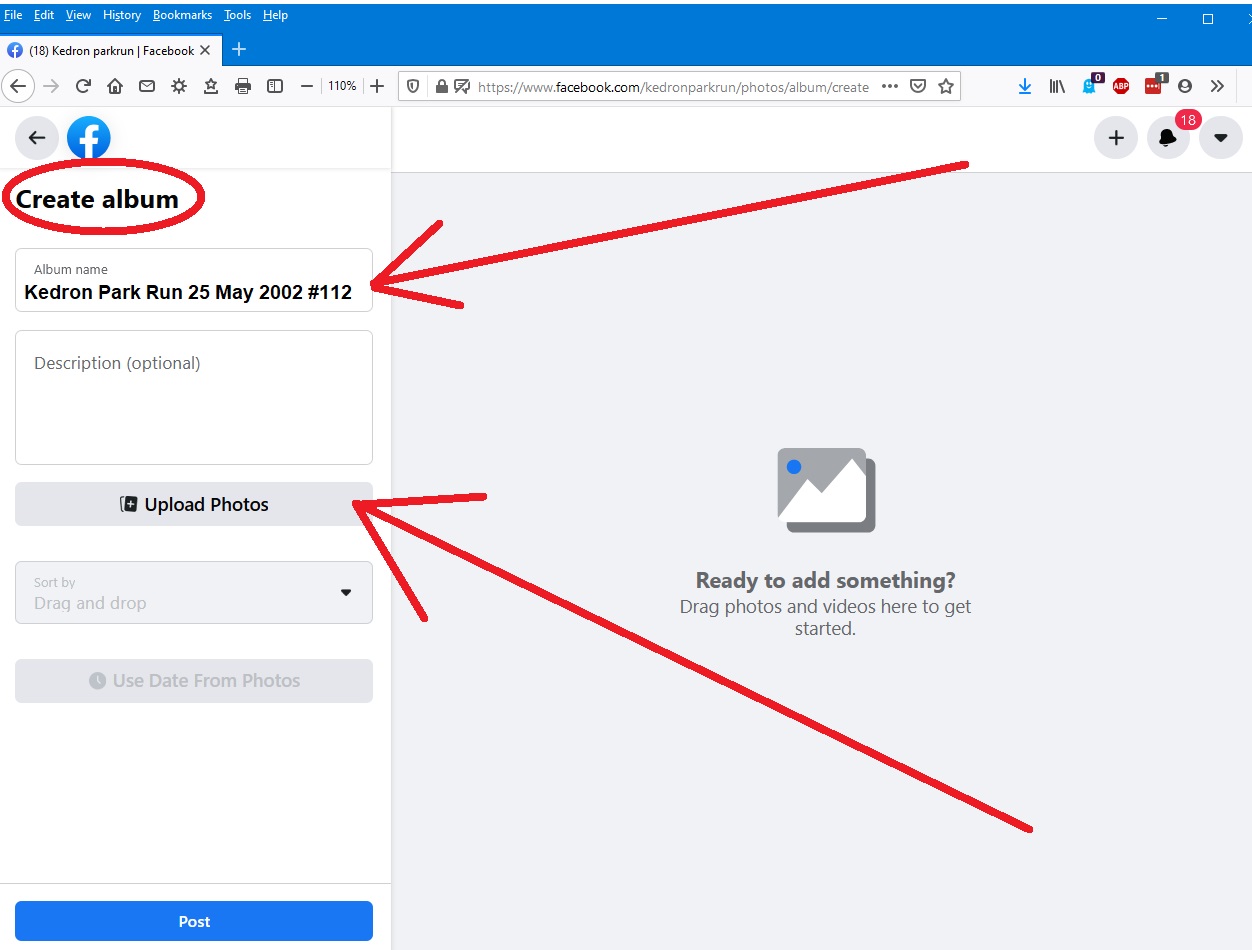
You'll then need to navigate to wherever you are going to upload the photos from (perhaps straight from your camera, perhaps from where you might have the photos stored).
When you select the photos you want and click Open (or Upload or Go or whatever it might be on your device), the photos will start to upload.
Select no more than 100 photos. The system doesn't work for more than 100 photos at once, but you can upload in several batches.
Here's what it will look like while uploading. If you want to watch the progress of your batch upload, re-size your screen by holding the Ctrl key and pressing the minus key on your keyboard. Use Ctrl and the plus key to bring it back to normal for the next step.
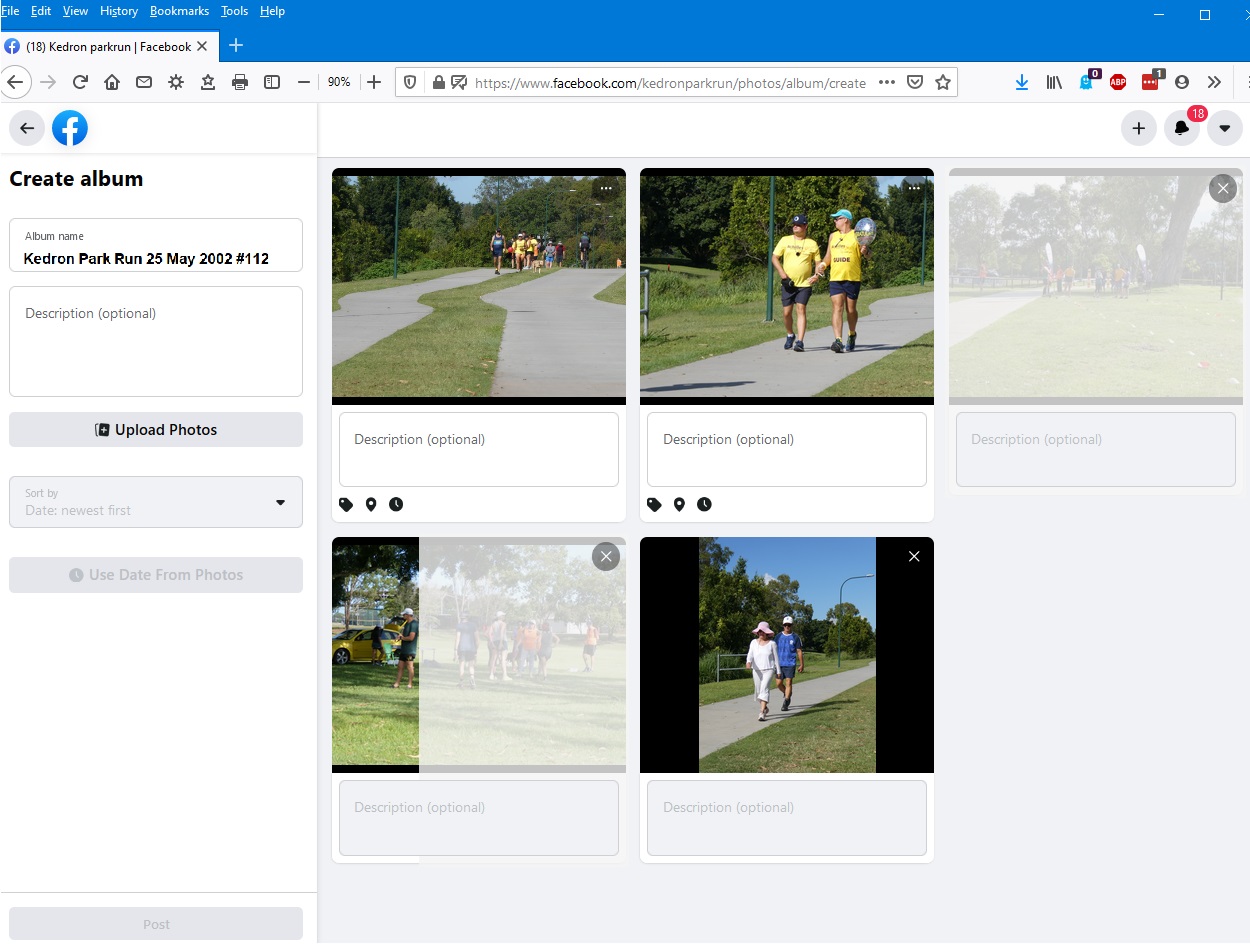
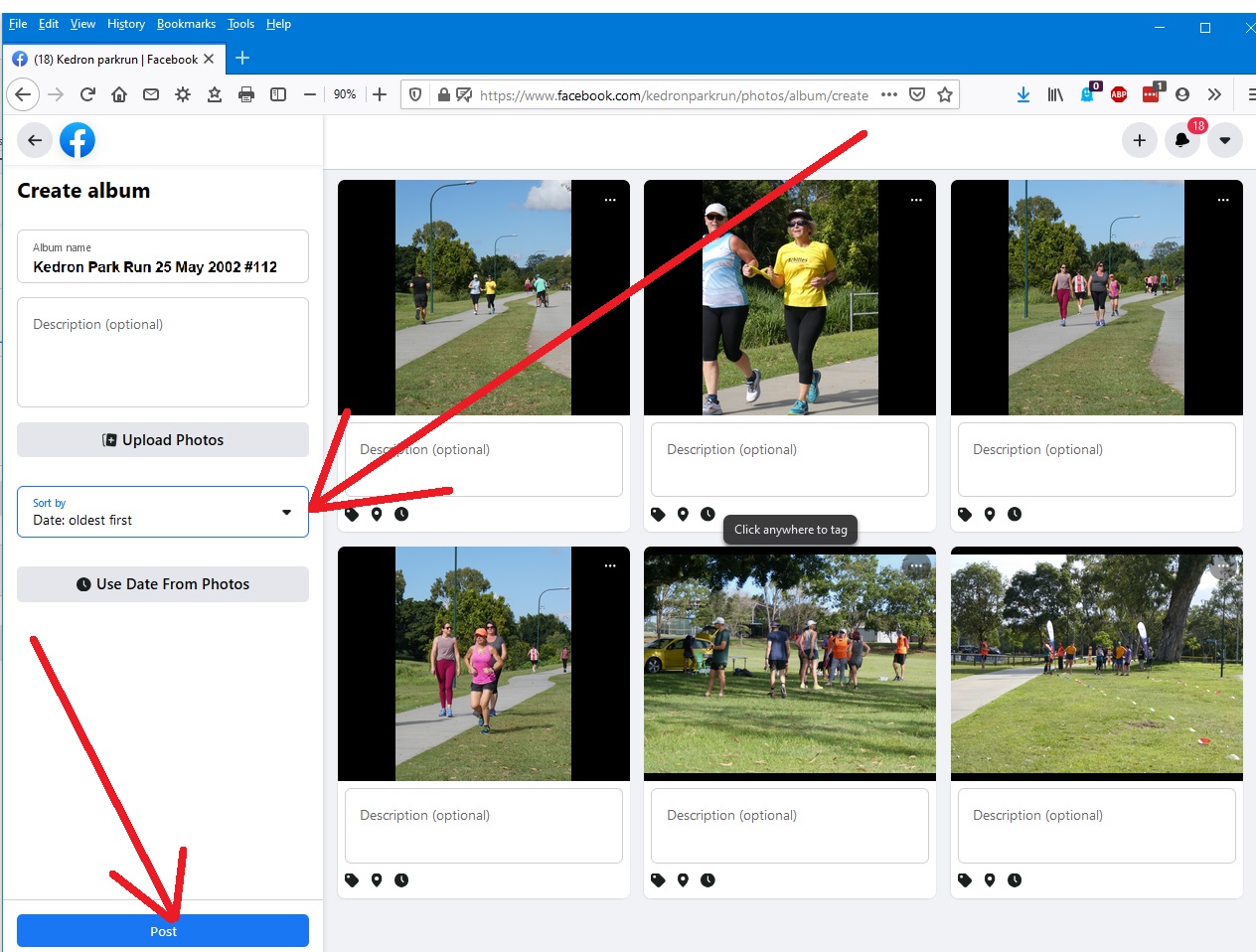
When the upload (of your batch of no more than 100) is complete, the Sort by box and the Post box at the left of the screen will become live.
Choose how you want the photos to appear (usually oldest first), then click on Post.
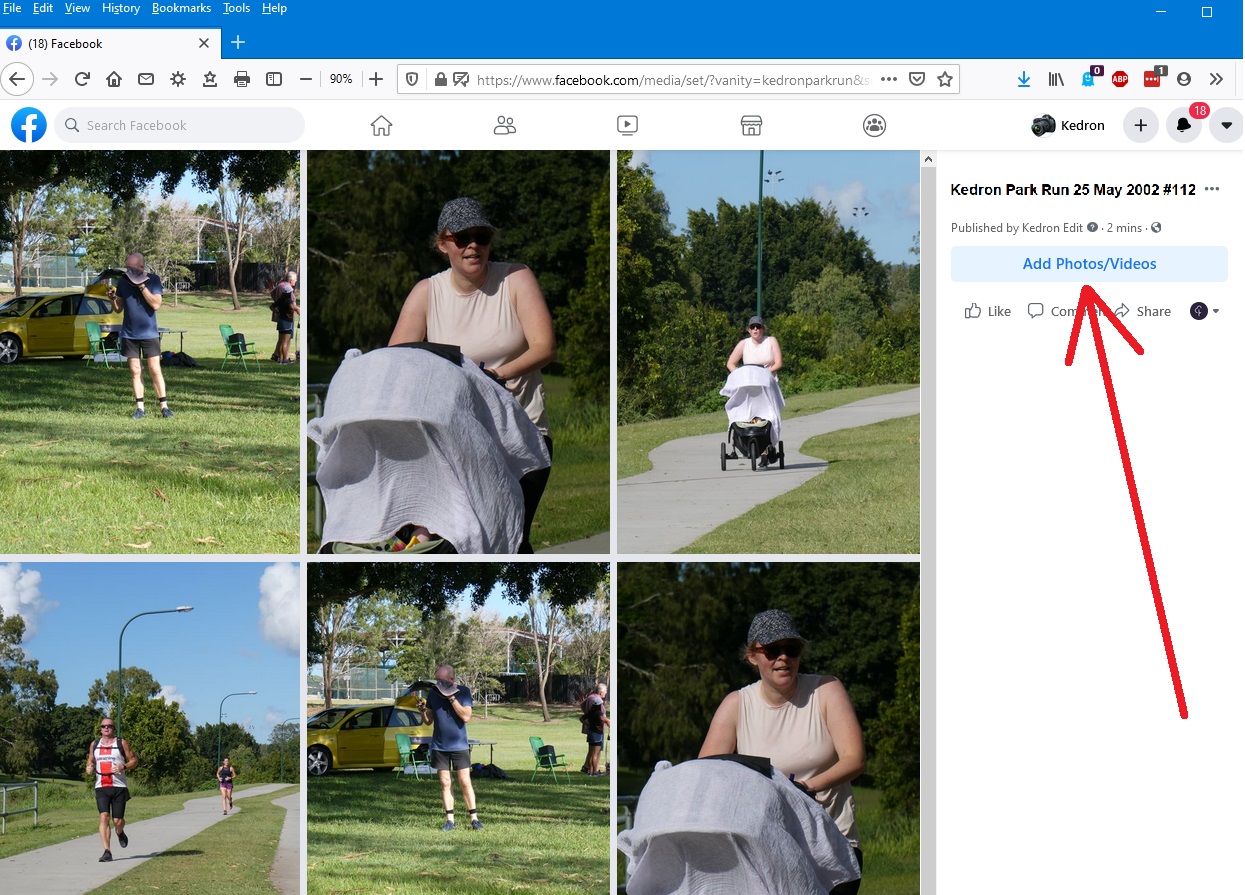
You'll then see a screen with your photos and a button to add more, if you want to.
If you do, click on Add Photos/Videos and you'll go to the Add to Album page. Then click on Upload Photos or Videos and repeat steps 8 and 9 above.
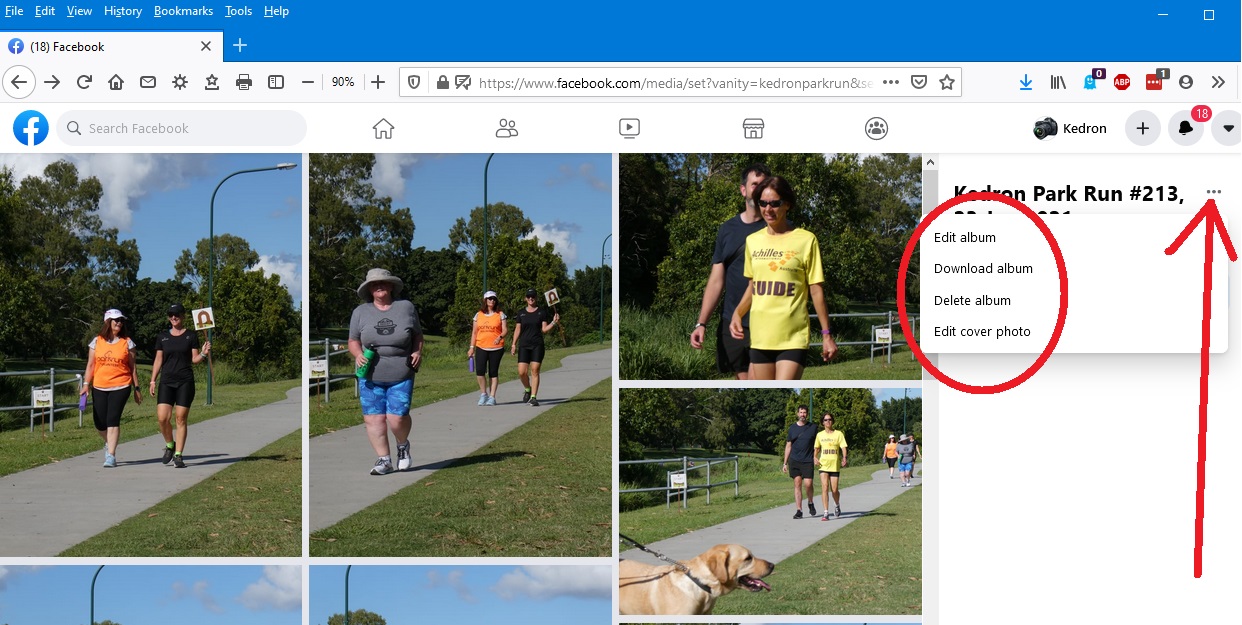
You can go back and make some changes if you want to. Click on the three-dot menu at the top right of the last screen.
Click on the little triangle at the top right (like you did iin Step 1) and then click Log Out in the drop-down list.
If these instructions don't work for you, or you think anything needs correction/improvement/updating, contact Peter Ridgewell 04 1338 8598.